
Step 1: Merchant starts the verification (Present)
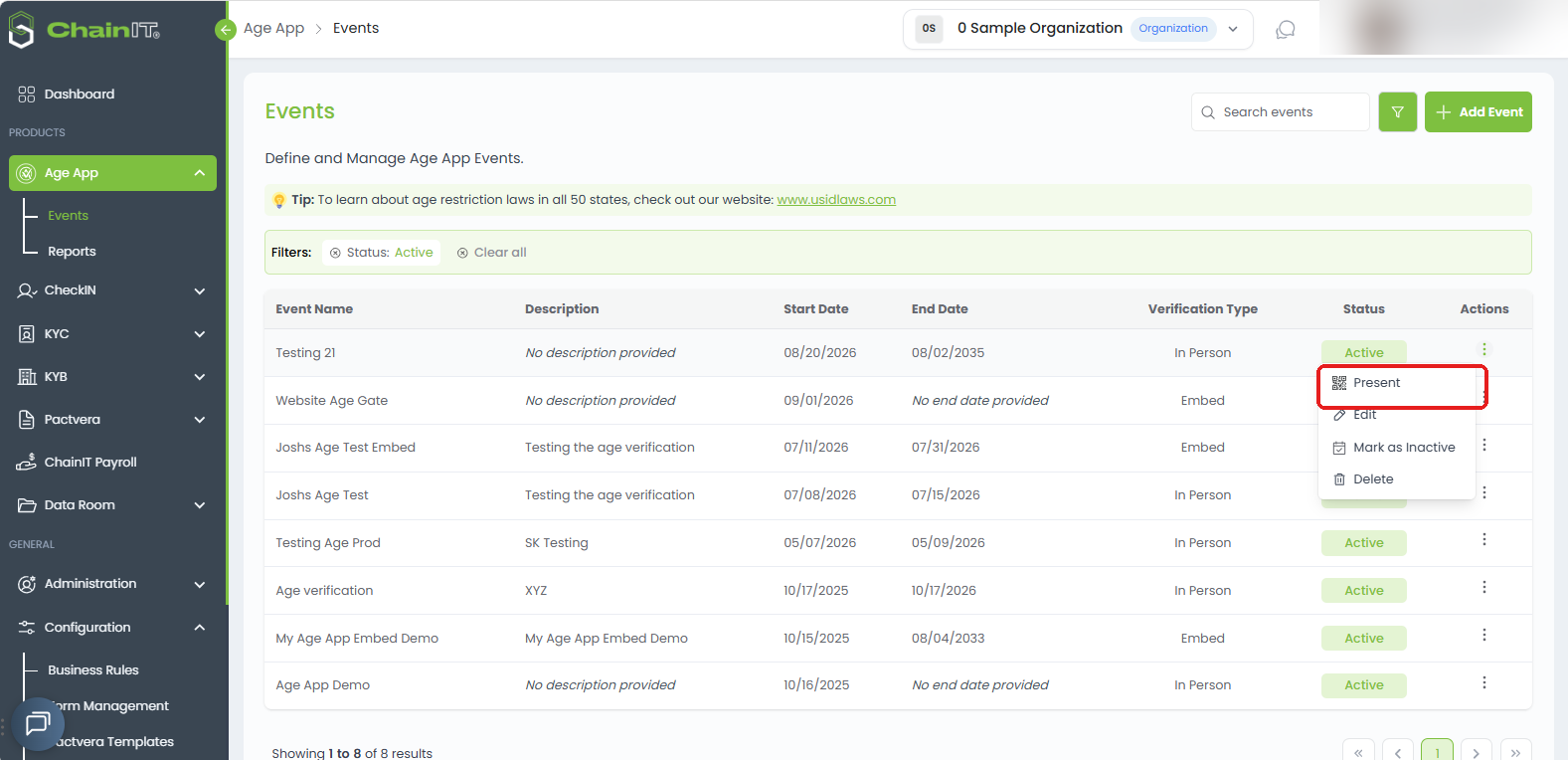
From Age App → Events, find your event in the list and click the ⋮ menu next to it, then select Present. This opens the event's QR code in a new browser tab — ready to display to the customer.
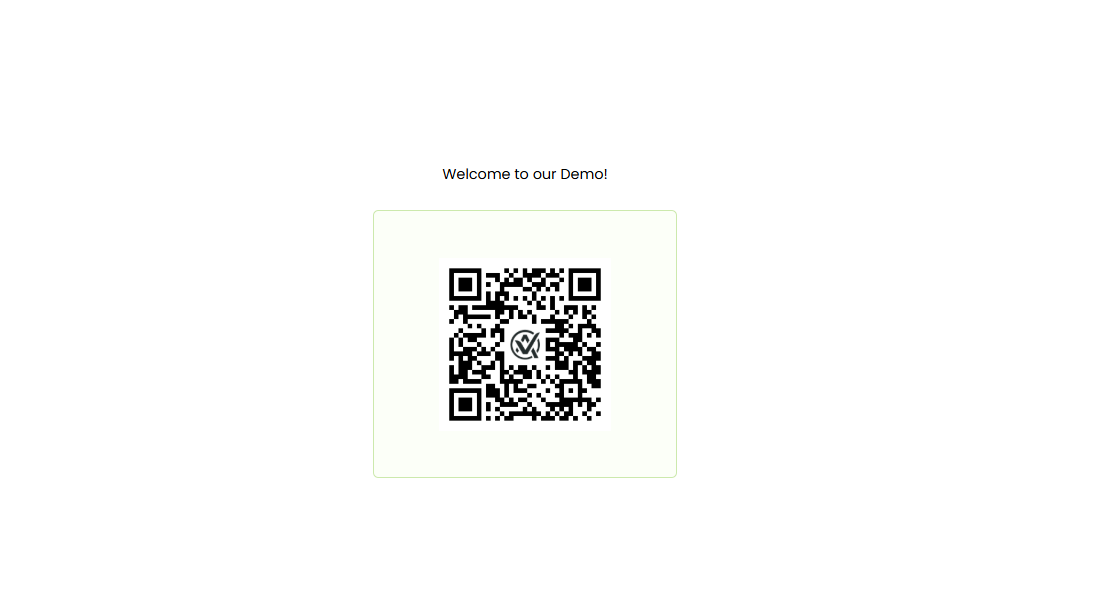
Step 2: The QR code is displayed
The new tab shows a QR code for your event. Point this at the customer, or turn your screen so they can scan it themselves.
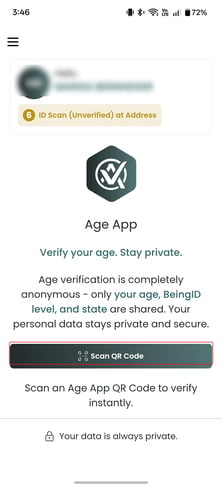
Step 3: Customer opens Age App and scans
On their own phone, the customer opens the Age App and taps Scan QR Code.
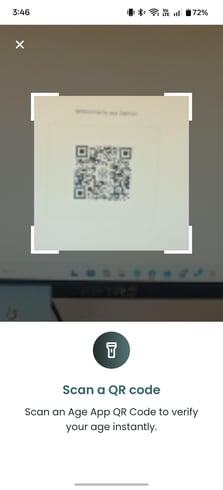
They scan the QR code on your screen using their phone's camera.
(If they don't have Age App installed yet, they'll be prompted to install it and complete a one-time identity verification — biometrics plus an ID document capture — before they can share their age.)
Step 4: Customer reviews and shares their age
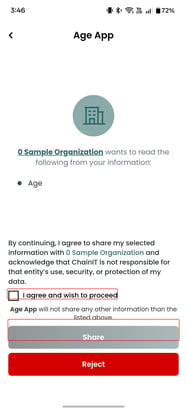
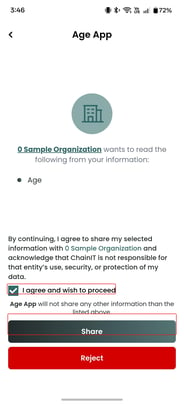
Age App shows exactly what's being requested — in this case, just Age. Nothing else. The customer checks I agree and wish to proceed, then taps Share.
Step 5: Verification runs
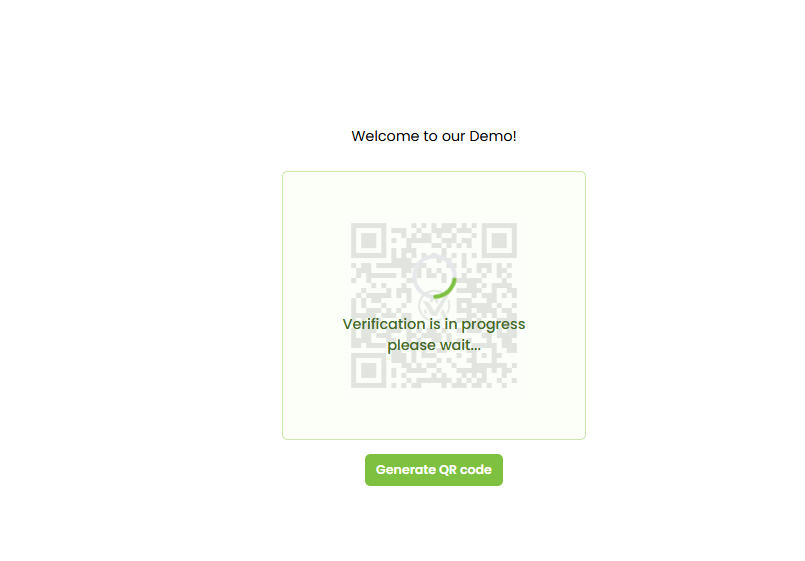
Back on the merchant's screen, the QR code is replaced with a brief "Verification is in progress" message while the result comes back.
Step 6: Customer sees confirmation
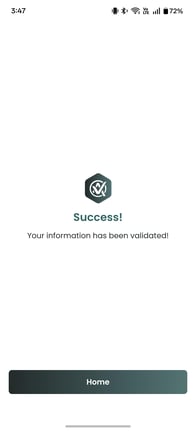
The customer's phone confirms their information was shared successfully.
Step 7: Merchant sees the result
The merchant's screen updates to show Approved (or a rejection if the customer doesn't meet the business rule).
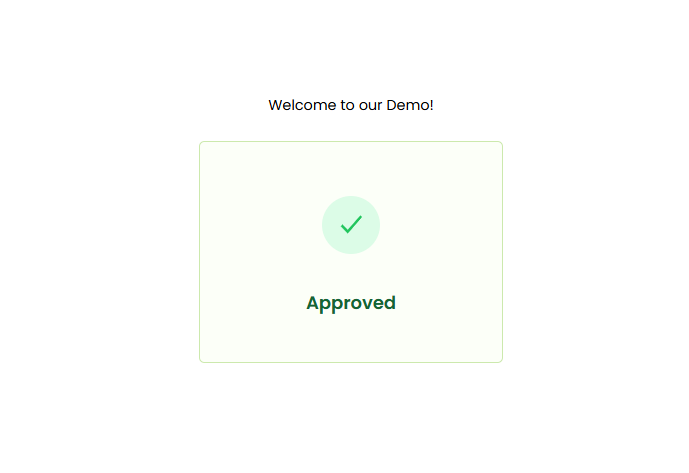
The customer is now free to enter the establishment or continue with their purchase.
What actually gets shared: Age App only shares the specific attribute your business rule asks for (like age) — never the customer's name, date of birth, ID number, or photo. Only the pass/fail result of the business rule evaluation is stored on the merchant side; no personal data is retained.
Need help? Contact ChainIT Support at support@chainit.com.