
Overview
When another organization sends your organization a Pactvera, a task appears on your dashboard. The Pactvera Admin assigns each required action to an eligible user, and the assigned user then completes it.
For a standard Pactvera Agreement, this may include signing a document or completing a form. For a Pactvera Transaction, it may also include making a payment, completing an inspection, providing an item of value, authorizing release, or accepting payout details.
Prerequisite: Your organization must have completed the onboarding checklist, and have a current, attested Role & Group Assignment Authority. Task assignment and signing are blocked until roles are assigned and the attestation is complete.
Only users whose approved roles make them eligible for an action will be available for assignment. User roles and authority are governed through an Authority Resolution Pactvera (ARP).
Click here to learn more about organizational authority in ChainIT.
Part 1 — Assign the Pactvera (Pactvera Admin)
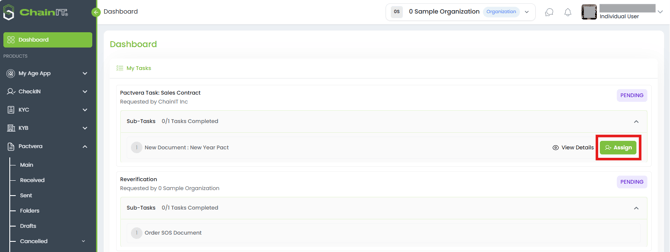
- Log in to the Business Portal. The incoming Pactvera task will appear on your Dashboard.
- Open the task and review the agreement details.
- Click Assign and select the user who will sign on behalf of the organization.
-
The available assignees are determined by the role required for that action. For example:
- Signing actions require the Pactvera Signer role.
- Release actions require the applicable TCA Releaser role.
- Other transaction tasks may require different configured roles.
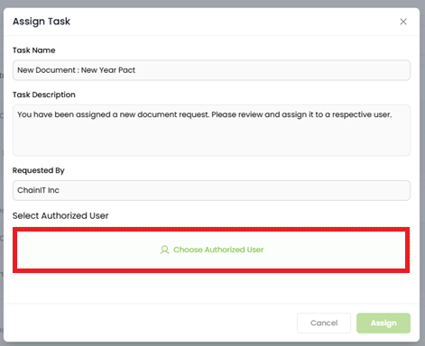
- Confirm the assignment. The signer will be notified that a Pactvera is awaiting their action.
Note: Pactvera Admins can view and assign incoming Pactvera actions, but they cannot complete an action unless they also hold the role required for that action.
Part 2 — Sign the Pactvera (Pactvera Signer)
In the portal:
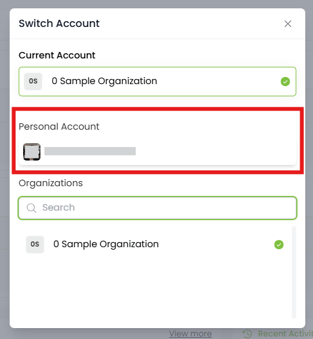
- Log in to the portal and select or switch to your Personal Account.

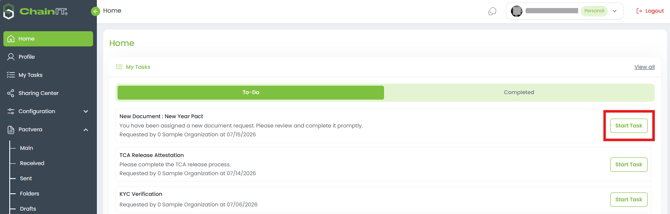
- The assigned Pactvera will appear in My Tasks on your Dashboard.
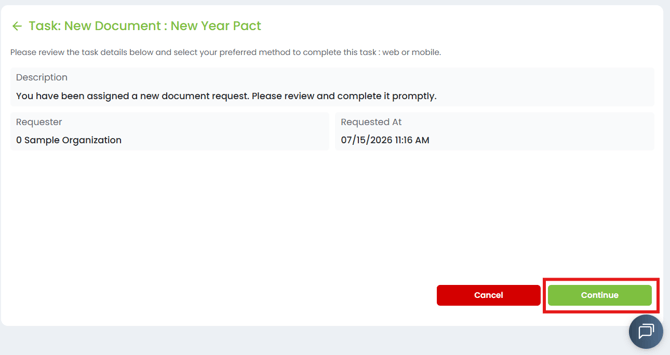
- Click Start Task and review the agreement content.
-
Click Continue to complete the required action. Depending on the Pactvera, this may include:
- Signing a document
- Completing a form
- Making a payment
- Completing an inspection
- Providing or confirming an item of value
- Authorizing release
- Accepting payout details
- Click Submit when you're finished.
- Complete identity verification if prompted.
- Once confirmed, your submission will be recorded as part of the Pactvera.
In the mobile app:
- Open the ChainIT mobile app and log in.
- The assigned Pactvera will appear in My Tasks on the home screen.
- Tap the task and review the details.
- Tap Continue, then complete the required action.
- When finished, tap Submit. The action will be recorded, and the requester and other applicable parties will be notified.
Completing one action does not necessarily complete the entire Pactvera. For Pactvera Transactions, payment, inspection, release, payout, or other transaction actions may still remain.
Role Assignment Attestation
The Role & Group Assignment Authority Attestation is the organization's signed record of who holds which roles and what they are authorized to do.
Key points for Pactvera flows:
- Assignment options are controlled by the roles recorded in the current authority structure. Users who are not eligible for an action will not be available for selection.
- Completing a Pactvera action is an execution event. Authority is validated against the current attestation at the time the action is performed, not only when it is assigned.
- If an assignee’s required role is removed after assignment, the task is blocked and marked Needs Reassignment – Authority Changed.
- If the attestation is pending re-signing, read-only access continues, but assignment and execution actions are paused until it is complete.
- Different actions within the same Pactvera Transaction may require different roles and may be assigned to different users.