
Every age check is recorded. Reports let you pull those records for a date range and export them, which is what regulators usually ask for.
Reports are generated, not browsed. You create a report over a period, then open or export it.
Step 1: open Reports
Sign in to the Business Portal, then open Age App, then Reports.
The list shows the reports you have already generated, with the date range and verification type each one covers. You can search it by name.
Step 2: generate a report
Click New Report and fill in the form.
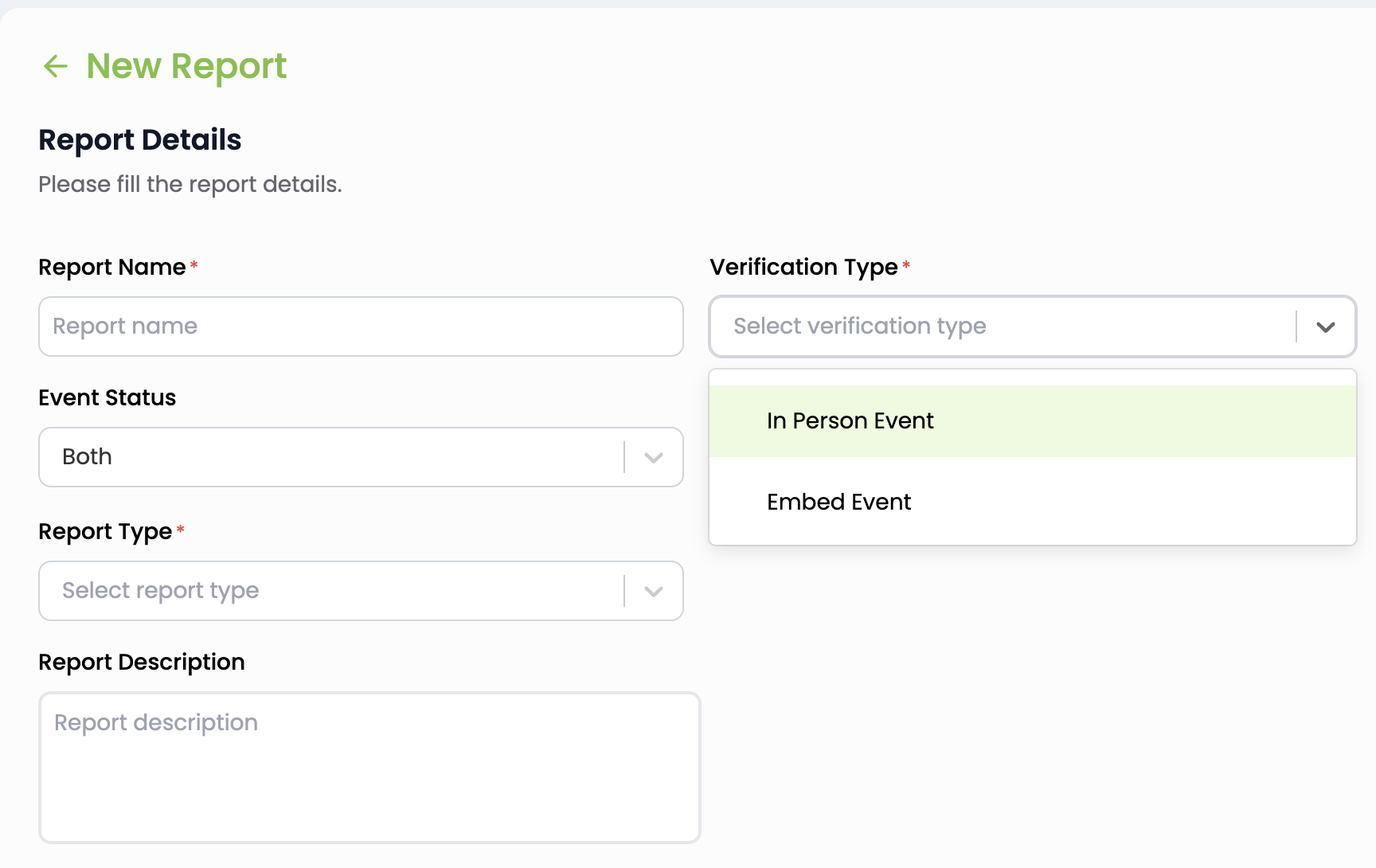
- Report Name is how you will find it later. Something like "August 2026 compliance" beats "Report 4".
- Verification Type is either
In Person EventorEmbed Event. - Event name narrows the report to one event. Leave it alone to cover all of them.
- Event Status filters by
Active,Inactive, orBoth. - Start Date and End Date set the period. They default to the last month.
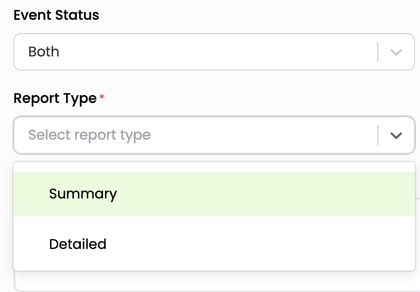
- Report Type is
SummaryorDetailed. Detailed lists every individual check. - Report Description is optional.
Click Generate. The report appears in the list.
Step 3: read the report
Click the three-dot menu at the end of a report's row and choose View.
The top of the report repeats what it covers: name, description, when it was generated, who generated it, report type, and verification type.
Below that, each age check appears as a row:
- Event Name is the event the check ran against.
- Transaction ID identifies the individual check.
- Transaction Date is when it happened.
- Domain is the site the check ran on.
- Result is whether the visitor passed.
- Condition Results links to the detail.
Click View Results on any row to see how the rule was evaluated: the overall outcome, the AND or OR group, how many conditions passed, and each condition in plain language, such as "Age greater than 18." Use Expand all and Collapse all on reports with nested groups.
Step 4: export it
Click Export, either from the three-dot menu on the list or from the report itself. That gives you a file you can archive, share, or submit.
Managing reports
The three-dot menu also offers Edit, to change a report's details, and Delete.
Reports are generated over a fixed period, so a report does not update itself as new checks come in. To cover a later period, generate a new one.
Privacy
No personally identifiable information about your visitors is stored. A report records that a check happened and how it came out, not who the person was.
Each row holds a transaction ID, a timestamp, the domain or event the check ran against, the result, and which conditions passed. None of that identifies the visitor.
The report header does name the portal user who generated it. That is your own staff member, not a customer.
This is what lets you hand a report to a regulator without handing over your customers' identities.
Your organization is responsible for determining the age-verification and identity-assurance requirements that apply to its business and jurisdictions. My Age App and the Business Rules Engine evaluate the conditions your organization configures; they do not independently determine the applicable legal or regulatory requirement.