
This guide explains how to create a Pactvera Transaction, add parties, configure the item of value and payment terms, set release conditions, and send the transaction for completion.
A Pactvera Transaction is intended for workflows centered on:
- Sending or receiving a payment
- Exchanging a product, service, entitlement, or other item of value
- Setting conditions that must be met before value is released
- Designating who has authority to approve release of the item of value and payment
If the agreement only involves signing or reviewing documents, completing forms, or collecting approvals — with no payment or exchange of value — create a Pactvera Agreement instead.
See Agreements: How to Create a Pactvera Agreement for instructions.
Step 1: Start from Getting Started or Pactvera > Sent
From the Pactvera "Get Started" screen, select Create & Send.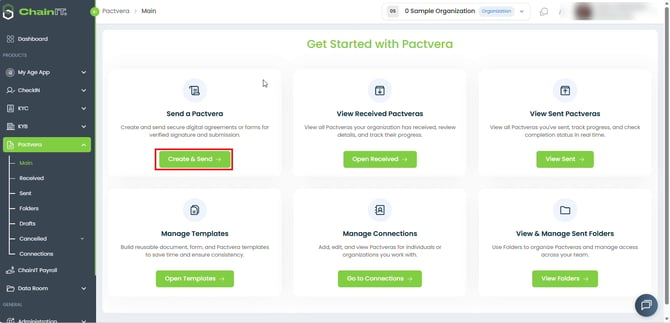
From Pactvera > Sent, select "New Pactvera".

Step 2: Choose "Pactvera Transaction"
You'll be asked what type of agreement you need. Choose Pactvera Transaction, which includes everything in a standard agreement plus a value transfer between parties. Click Continue.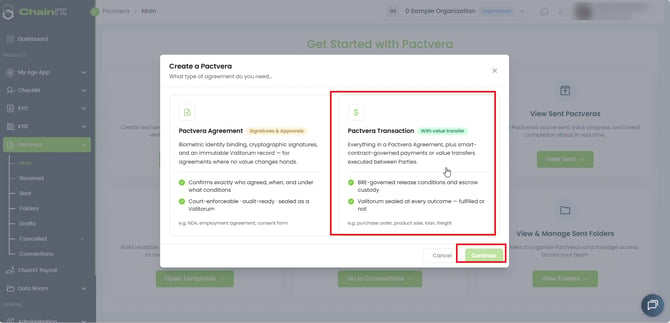
Step 3: Name Your Transaction
Give the transaction a clear, descriptive title so it's easy to find later. Click Continue.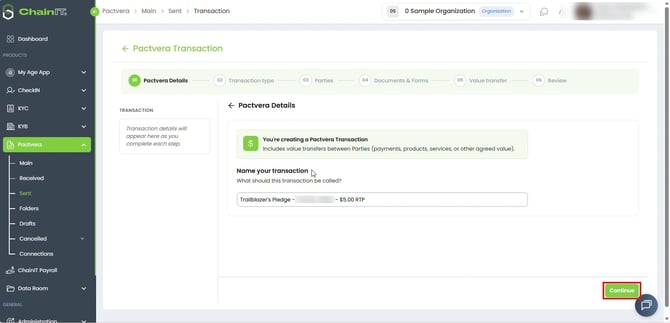
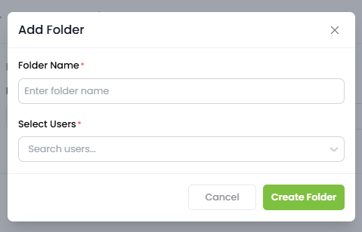
Step 4: Choose a Folder
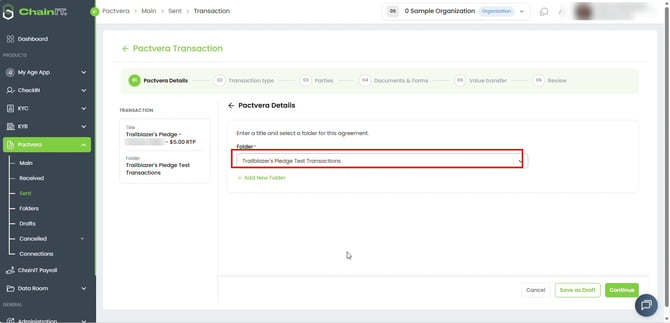
Select an existing folder to organize this transaction, or create a new one.
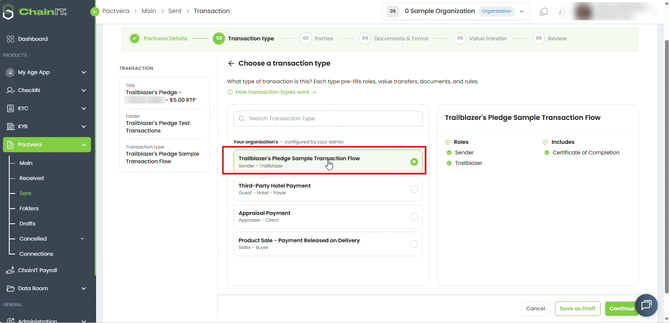
Step 5: Choose a Transaction Type
Select the transaction type that matches your use case. Each type pre-fills the roles, value transfer structure, document labels, and rules involved.
Step 6: Choose Your Role
Select the role your organization plays in this transaction.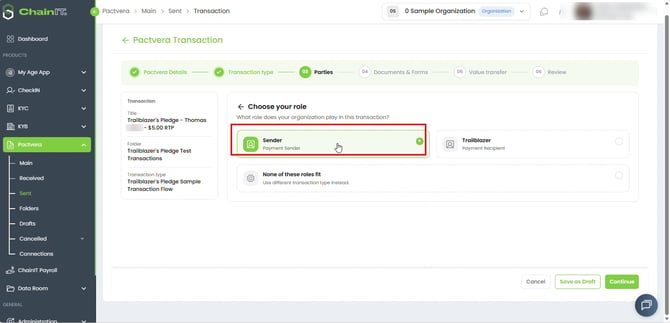
Step 7: Add the Other Party
There are two types of Parties that can be added to a Pactvera.
-
Individual
- An individual signs on their own behalf once identity requirements are met.
- Their signature legally binds them as an individual, not on behalf of an organization.
- Individuals can be selected from your organization's Directory or invited using the available contact information.
- All individuals are required to onboard to ChainIT ID with a valid ID document such as a Driver's License or other state-issued ID card, passport, or other valid government-issued international ID document.
-
Organization
-
An individual signs on behalf of the organization in a legal capacity.
-
The organization is legally bound to the agreement, not just the individual who signs.
-
Organizations can be selected from your organization's Directory or invited using the available organization information.
-
Internal signers are assigned by that organization after receipt — the sender cannot assign signers on behalf of another organization.
-
Important Note: An organization party receives the Pactvera, then internally assigns which of its authorized employees will execute each required action, governed by their own authority structure. Click here to learn more about Organizational Authority on ChainIT.
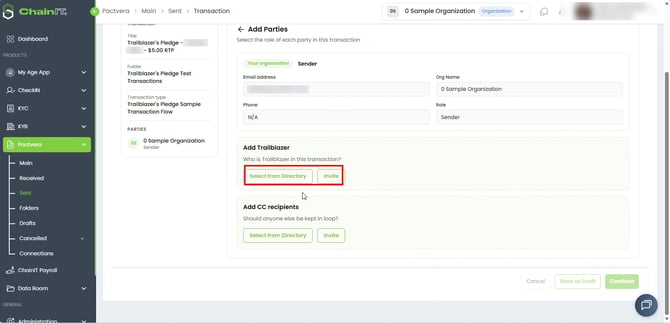
When you select Select from Directory, you can search eligible individuals and organizations in your organization's full Directory.
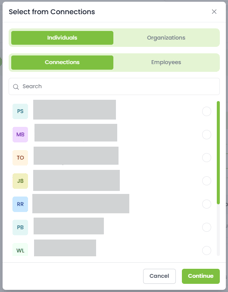
You can also invite a new organization or individual if the party is not already available in your Directory.
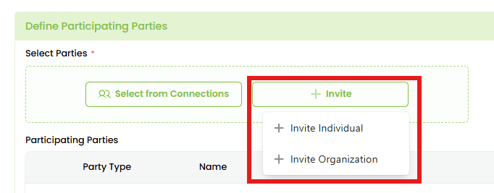
To invite an individual, enter their email address and phone number.
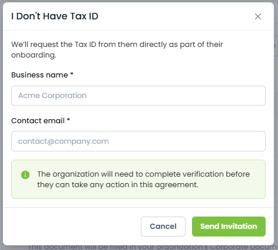
To invite a new organization, either enter the Tax ID number, or invite them by email address if you don't have the Tax ID Number.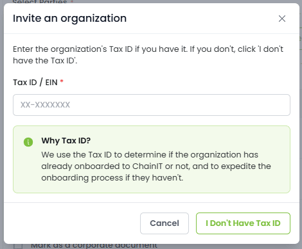
CC recipients receive notice-only access and copies of the completed Pactvera but are not parties and cannot be assigned any actions.
Click here to learn more about Parties and Actions in Pactvera.
Step 8: Add Documents and Forms
Choose the document(s) that make up this agreement — upload a new file or select a pre-built template.
Click here to learn more about configuring documents.
Click here to learn about creating forms in Pactvera.
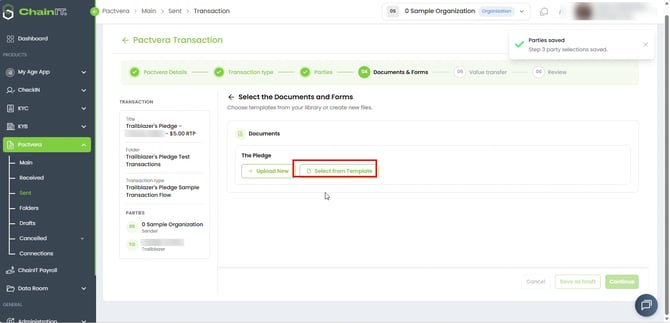
Step 9: Add Signature and Data Fields
Add the fields each participant needs to complete — signature, date, name, initials — and assign them to the correct party.
Learn more about Parties and Actions in a Pactvera Document.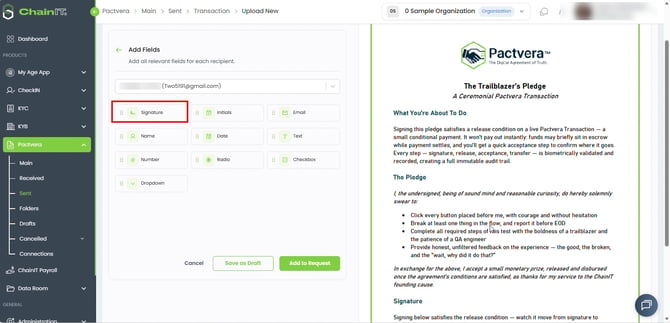
Step 10: Configure the Item of Value
On the Value Transfer step, configure the item of value (the consideration) being exchanged.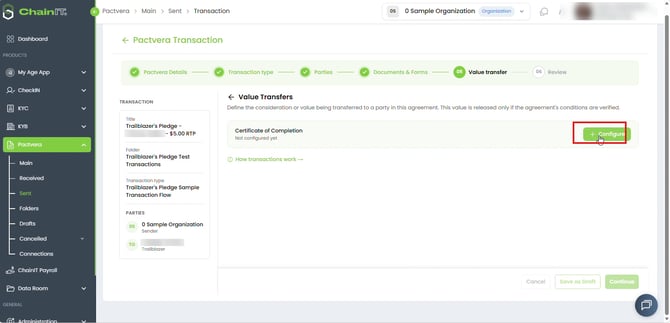
Select the product from the list of available options in your organization's wallet.
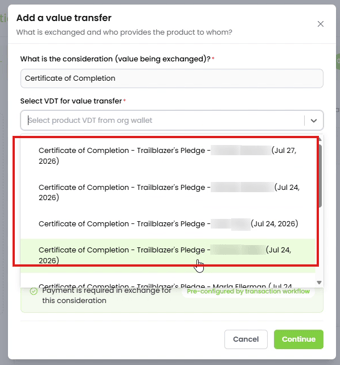
Select the recipient - the party that will receive the item of value (consideration) after conditions are met.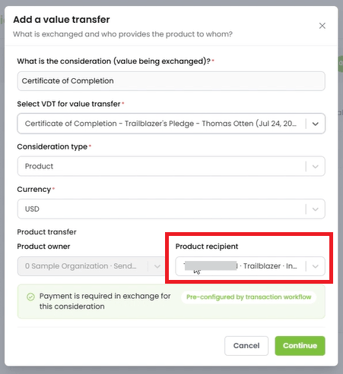
Step 11: Review the Item of Value
Confirm who is providing the item of value and who is receiving it, then continue.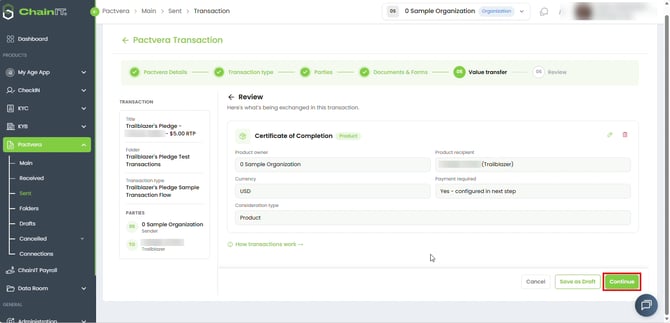
Step 12: Set up the Payment
Specify who is responsible for the payment and enter the transaction amount.
If the transaction pays a single recipient, select that recipient as the payee.
If the proceeds need to be distributed to more than one participant, you can configure multiple payout recipients and define how the transaction payout will be distributed between them. Pactvera validates the payout configuration before the transaction can proceed.
For example, a transaction may involve one payment from the buyer while the resulting payout is distributed between multiple participating parties.
Each payout remains part of the transaction history so the final record can show how the transaction proceeds were distributed.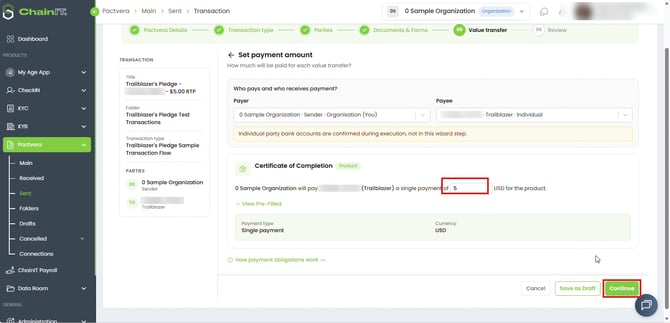
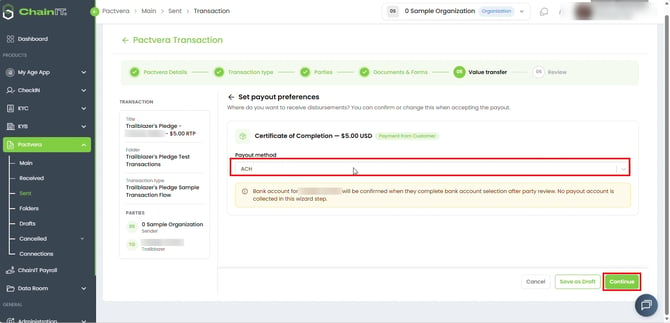
Step 13: Set the Payout Method
Configure the payout method for the applicable recipient or recipients.
Available methods may include:
- ACH
- RTP (Real-Time Payment)
- Wire Transfer
For RTP, confirm that the destination bank account can receive Real-Time Payments before the Pactvera is sent.
Recipients review their payout information as part of the payout task. The payout flow can show the gross amount, applicable fees, net amount, payout method, and masked destination account. Recipients may also be able to update the payout method or destination account before accepting the payout where that option is available.
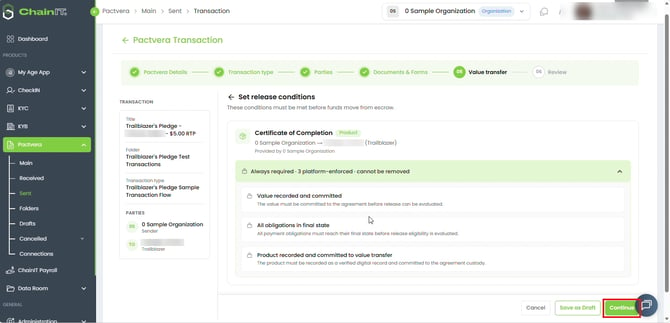
Step 14: Review the Conditions
Review the conditions that must be met before payment is released. Some conditions are always required and can't be removed.
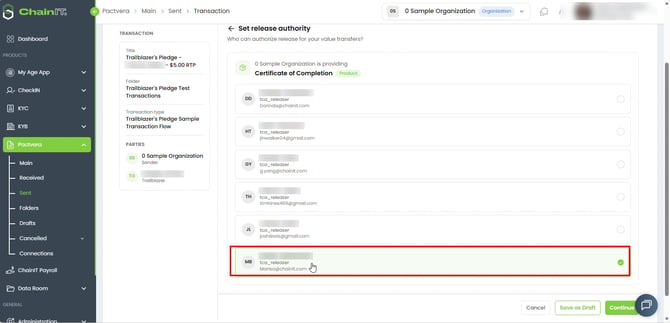
Step 15: Set Release Authority
Select a user from your organization to approve the final value transfer once all the conditions are met.
Only users with the required authority permissions are shown here. Learn more about organizational authority.
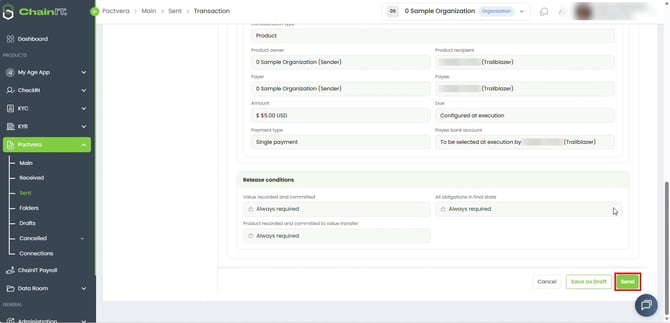
Step 16: Review and Send
Review the full transaction summary, then click Send.
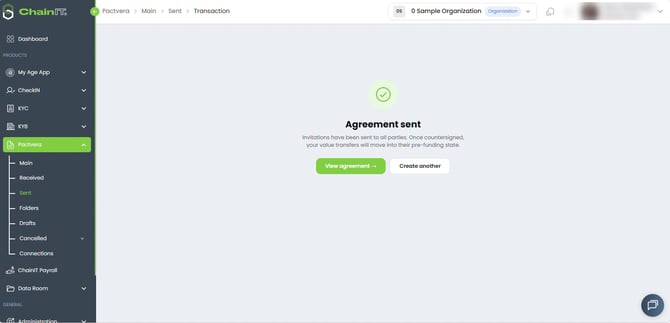
Step 17: Confirmation
You'll see a confirmation once your transaction has been sent. The other party will now receive it to complete their steps.
Key Concepts
| Concept | Meaning |
|---|---|
| Item of value | The product, service, entitlement, money, or other consideration being provided |
| Payment obligation | The amount one party owes another as part of the exchange |
| Payout recipient | A party designated to receive some or all of the monetary proceeds from the transaction |
| Multi-party payout | Distribution of a transaction payout across more than one recipient according to the configured payout rules |
| Payment reversal | A recovery action used when a previously completed payment needs to be reversed because the transaction cannot proceed |
| Funding | Committing the item of value to the transaction |
| Condition | A requirement that must be satisfied before release |
| Release | The authorized approval allowing the value to move |
| Transfer or disbursement | The final movement of the value or payment to the recipient |
| Release authority | The verified organizational authority required to approve release |
Note: All individual names and email addresses have been blurred for privacy. The organization name shown ("0 Sample Organization") is a demo account.